
Themely - Icons & Widgets
Animoji Phone X & Emoji Maker Develop TeamPersonalization
4.84.22K Reviews
- Version
- 1.0.0.902
- Installs
- 10.00M
- Age Rating
- Teen
Screenshots
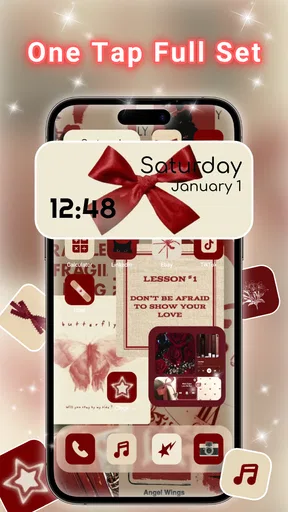
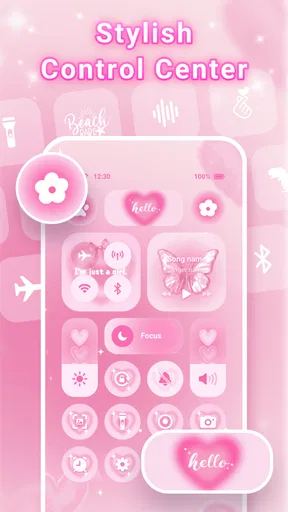
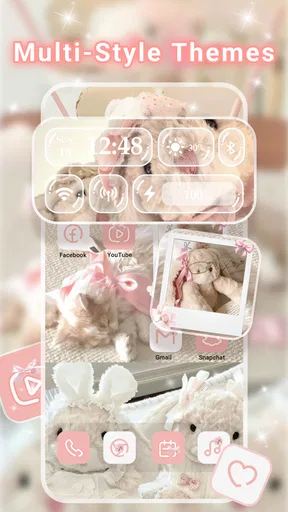
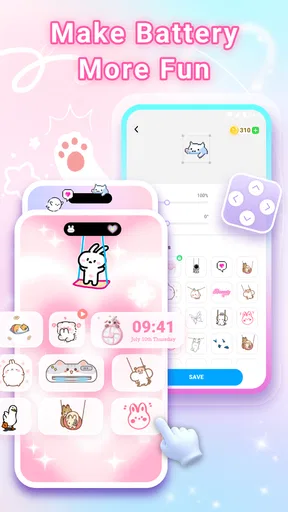
Our Review of Themely - Icons & Widgets
 Analysis by Appyee
Before choosing a theme, I’d think about what I need the home screen to do on an ordinary day. A layout can look striking in a preview yet become harder to use when I’m rushing to open messages, check a calendar, or find a familiar app. With Themely - Icons & Widgets, I’d treat visual style as one part of the decision and everyday clarity as the other: the best setup is one I can recognize quickly, not just one that looks polished.
Readability and finding the right app
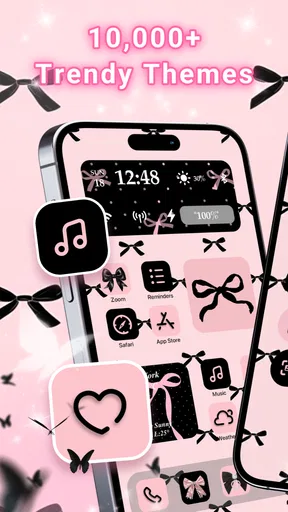
Themely is a personalization app from Animoji Phone X & Emoji Maker Develop Team, built around changing the appearance of a phone’s home screen with themes, icons, and widgets. That makes it appealing if the standard icon set feels stale or if you enjoy giving your device a coherent look. The store summary points to a large library, but a broad choice is useful only when I can still distinguish the tools I use most.
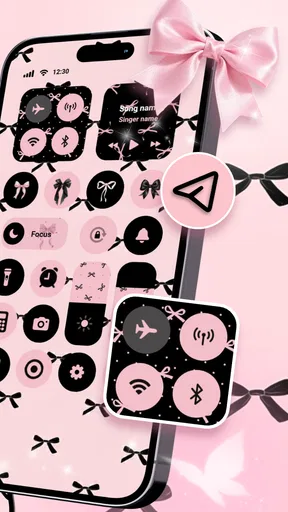
When comparing designs, I’d check the icons for recognizable shapes and strong visual differences rather than judging them only by color. If several icons share a similar outline or shade, a carefully coordinated page might look neat but slow me down when I’m trying to tap the right one. I’d also keep the first home-screen page for frequent tasks and put decorative or occasional shortcuts elsewhere. That small choice helps a theme feel personal without turning the phone into a puzzle.
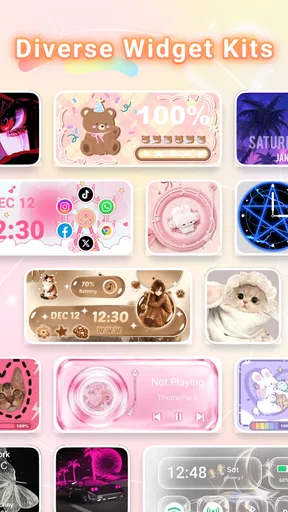
Widgets deserve the same practical test. A clock or calendar can make useful information easier to spot, but a crowded layout can compete with app icons and wallpaper. I’d start with one widget that solves a real need, then see whether I can read it at a glance from my usual distance. If the design makes the information less clear, I’d rather choose a simpler option than keep it just for the look.
Motor and sensory comfort
Theme selection and widget placement can make a phone feel more comfortable, but they don’t automatically make every screen easier for every person. For someone who prefers a calmer visual environment, a restrained theme may feel less busy than a highly decorative one. For another person, stronger contrast and distinct icon shapes may matter more than matching colors. I’d use previews to compare those qualities before changing a layout I already know well.
There’s also a practical trade-off between a carefully arranged screen and the effort of setting it up. Moving items one by one can feel fiddly, especially if precise tapping is difficult or if I’m working with a small display. I’d make changes in short passes, beginning with the icons I use most, rather than trying to rebuild every page at once. Keeping a note or screenshot of the old arrangement gives me a reference if the new layout becomes harder to navigate.
For sensory comfort, I’d pay attention to the whole screen rather than the theme preview alone: wallpaper, icon colors, widget density, and the amount of visual decoration all work together. A design that looks balanced in a gallery can feel too busy once everyday apps fill the page. I’d favor a clear background and leave breathing room around important shortcuts, especially if I often use the phone in distracting surroundings.
Using it across different situations
A theme that works at home may not be the one I want when I’m outside. In bright surroundings, subtle colors and delicate details can be harder to pick out; in a quiet evening setting, a more elaborate arrangement may be pleasant. I’d test a chosen layout where I actually use the phone, not only while browsing themes. The useful question is whether I can still find a route to the essentials when I have only a moment to look.
For example, imagine checking a calendar widget while walking into a meeting, then opening a messaging app to let someone know you’ve arrived. A familiar placement and an easy-to-read widget matter more in that moment than a perfectly coordinated set of icons. If I were preparing Themely for a busy day, I’d keep the calendar and communication apps in predictable places, choose a widget that doesn’t crowd them, and avoid making last-minute visual changes just before heading out.
Where a themed screen can fall short
The main limitation is that appearance-focused customization asks me to make choices that can affect quick recognition. A visually unified icon set may not match the symbols I’ve learned to spot in the default layout, and mixing designs can make a page feel less consistent. Previews help reduce guesswork, but they don’t replace trying the finished arrangement during normal use. I’d change one part at a time so I can tell whether a new icon or widget is helping.
I’d also separate what the app offers from what a phone’s own home-screen setup allows. Customization can work differently across devices and operating systems, so I’d check the steps shown in the app on my own phone before planning a complete redesign. If I want the fewest setup decisions, the built-in wallpaper and display options may be enough. If I need a very specific accessibility arrangement, I’d prioritize the phone’s established accessibility controls rather than assume a decorative theme can provide them.
Cost is another sensible part of the choice. Themely is free to install, with optional in-app purchases listed from $0.99 to $39.99 per item. I’d browse first and decide what I actually want before buying anything; a large catalog can make it tempting to collect designs when one well-chosen layout would do. The app is rated Teen, and I’d keep that in mind when deciding whether it suits a younger user or a shared device.
Getting Started with Themely
First things first, downloading Themely - Icons & Widgets is a breeze. It’s available on both Android and iOS, so no one’s left out of the fun. Once installed, the app opens up a world of possibilities. The user interface is clean and intuitive, so even if you’re not the most tech-savvy person out there, you’ll find your way around pretty easily.
Upon launching the app, you’re greeted with a variety of themes, each more vibrant than the last. They’ve got something for everyone, whether you’re into minimalistic designs or more extravagant ones. It’s like having a wardrobe for your phone!
Diving into Themes and Icons
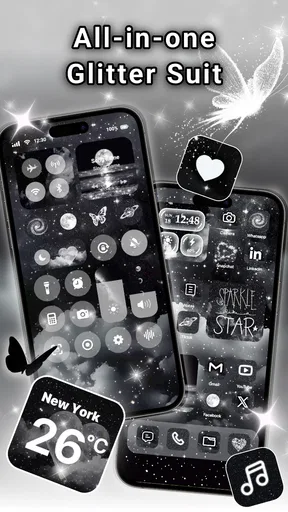
The main attraction here is the extensive collection of custom icons and widgets. You can choose from hundreds of designs that can completely alter the look of your home screen. I went with a sleek, monochrome theme that turned my device into a stylish piece of tech art. The icons are crisp, and the attention to detail is impressive.
Switching themes is as simple as a few taps. The app allows you to preview themes before committing, which is a great way to ensure you’re happy with your selection. Plus, if you’re feeling particularly creative, you can mix and match icons from different themes to create something uniquely yours.
Widgets Galore
No personalization app is complete without widgets, and Themely doesn’t disappoint. From weather updates to calendar widgets, you can add a functional yet aesthetic touch to your home screen. I especially love the transparent clock widget that blends seamlessly with any background.
Customization doesn’t stop there. You can adjust the size and position of widgets to fit your layout perfectly, which is a nice touch for those who like absolute control over their home screen design.
Usability and Performance
Now, you might be wondering if all this customization comes at the cost of performance. Fear not! Themely is optimized to run smoothly, and I haven’t noticed any lag or glitches. The app doesn’t hog resources, which is a relief, especially if you’re running it on an older device.
Another highlight is that changes made within Themely don’t require you to root your phone or perform any complicated operations. It’s all very straightforward, which is perfect for those who want a hassle-free experience.
Final Thoughts
At the end of the day, Themely - Icons & Widgets is a fantastic tool for anyone looking to breathe new life into their mobile device. It’s user-friendly, packed with options, and doesn’t compromise on performance. Whether you’re a seasoned customization pro or a beginner eager to experiment, this app is a must-try.
So, if your home screen is feeling a bit dull, give Themely a spin. It’s a fun and engaging way to express your style and keep your phone looking fresh. Who knew personalizing your phone could be this much fun?
Choosing the right level of customization
Themely makes the most sense for someone who enjoys changing a phone’s visual identity and is willing to spend a little time deciding what belongs on each screen. It can suit a student who wants a coordinated setup for study tools, a person who likes a seasonal refresh, or anyone who gets more pleasure from a phone that reflects their taste. Its appeal is less about changing how the phone works and more about making familiar functions feel visually considered.
It is not the best fit for someone who wants a home screen to remain exactly as it is, or who finds frequent visual change tiring. If I rely on muscle memory to reach important apps, a major redesign could create more friction than enjoyment. I’d also skip a decorative overhaul if the phone is shared with someone who depends on the existing arrangement. In those situations, a small wallpaper change or the built-in options may be a gentler choice.
A practical way to build a theme
My preferred approach is to choose the wallpaper first, then judge icons against it, and only afterward add a widget. That order matters: a striking background can make an icon set appear more legible in the preview than it does once everything is together. I’d place the most-used apps in stable positions and use the remaining space for less frequent shortcuts. This creates a useful baseline before I spend time mixing designs.
A second helpful habit is to test one change at a time. I’d try a new icon set for a normal day before moving widgets around, then decide whether the difference is genuinely comfortable. If I change the wallpaper, icons, and layout all at once, it becomes difficult to tell which choice made the screen easier or harder to use. This gradual workflow is especially useful for anyone who prefers predictable navigation.
The app’s scale is part of its appeal: it has an average rating of 4.8 from around 145,000 ratings, with more than 5 million installs. Those figures suggest that plenty of people are interested in this kind of home-screen personalization, but they don’t tell me whether a particular theme will suit my eyes, habits, or device. I’d use the previews and my own routine as the deciding test rather than treating popularity as a guarantee of fit.
How it compares with built-in options
Compared with changing only a wallpaper or choosing from a phone’s standard appearance settings, Themely offers a more coordinated route to a redesigned screen: themes, custom icons, and widgets sit together in one personalization experience. The trade-off is that built-in controls are often the simpler place to start when I only want a subtle change or need to preserve a familiar layout. Themely is for a more deliberate makeover, not necessarily for every small adjustment.
Compared with a highly hands-on launcher or manual icon setup, a themed collection can reduce the amount of design work I have to do myself. That convenience is most useful when I want a coherent look without assembling every element from scratch. A more configurable alternative may suit someone who wants fine control over every behavior and placement, while Themely is better for browsing visual directions and making a screen feel new with less design planning.
Device fit and everyday expectations
The current version is 1.0.0.443 and the minimum Android requirement is 7.0. I’d check that requirement before installing on an older Android phone, and I’d follow the setup instructions presented on my own device rather than assume every model handles home-screen changes in the same way. The app is also available on iOS, but the steps and customization possibilities can differ by platform, so I’d judge the result on the phone I actually plan to use.
One question people often have is whether a theme can be tried without committing to it. The preview option makes that easier: I can compare a design before applying it, then switch direction if the look does not suit my routine. Another practical question is whether widgets are only decorative. The examples include weather, calendar, and clock choices, so they can add glanceable information as well as style; I’d still check that each one makes its details easy to read in my chosen layout.
If I were setting it up for a family member with visual or motor preferences, I would not assume that a theme alone addresses those needs. I’d ask them to try the finished screen themselves, keep important apps easy to reach, and use the device’s own accessibility settings where needed. That distinction is important: personalization can help someone feel more at home with a phone, but it is not a substitute for controls designed specifically to support access.
My inclusive verdict
Overall, I see Themely as a useful option for people who want a more expressive home screen and are comfortable making a few choices to get there. Its mix of themes, icons, and widgets gives me more room to shape the look than a simple wallpaper change, while previews and the ability to combine designs encourage experimentation. The strongest results come from balancing visual style with familiar placement and readable information.
For readers who value clarity, predictable tapping, or a low-effort setup above visual variety, the phone’s built-in layout may remain the better everyday choice. For readers who enjoy a fresh look and are willing to test it in real situations, Themely is worth exploring. I’d start modestly, keep essential shortcuts recognizable, and let comfort—not just appearance—decide whether the new screen earns its place.
Privacy and Permissions
See what permissions an app requests and how it handles your data.
- Location
- approximate location (network-based), precise location (GPS and network-based)
- Phone
- read phone status and identity
- Photos/Media/Files
- read the contents of your USB storage, modify or delete the contents of your USB storage
- Storage
- read the contents of your USB storage, modify or delete the contents of your USB storage
- Camera
- take pictures and videos
- Wi-Fi connection information
- view Wi-Fi connections
- Device ID & call information
- read phone status and identity
- Other
- view network connections, pair with Bluetooth devices, access Bluetooth settings, full network access, run at startup, set wallpaper, draw over other apps, control vibration, prevent device from sleeping, modify system settings, install shortcuts, uninstall shortcuts, Google Play license check
Verdict
Strengths of Themely - Icons & Widgets
- Intuitive user interface and easy navigation.
- Wide variety of themes and widgets available.
- Regular updates with new content.
- Customizable options for personalized layouts.
- Compatible with both Android and iOS devices.
Limitations of Themely - Icons & Widgets
- Some themes require in-app purchases.
- Limited free features in the base version.
- Occasional ads may disrupt user experience.
- Can drain battery faster on older devices.
- Needs internet connection for theme updates.
Similar Picks in This Category
View All
Microsoft SwiftKey AI Keyboard
SwiftKey4.3

Wallpapers
Google LLC4.1

Zedge™ Wallpapers & Ringtones
Zedge4.7

Yandex Browser with Alice AI
Direct Cursus Computer Systems Trading LLC4.3

Ringtone Maker:create ringtone
Big Bang Inc.4.7

Fonts Keyboard
Fonts Keyboard3.9
Frequently Asked Questions
What is Themely - Icons & Widgets and how does it work?
Themely - Icons & Widgets is an app designed to personalize your Android or iOS device with unique themes, icon packs, and widgets. It allows you to customize your home screen's appearance by choosing from a variety of themes and widgets that suit your style. The app offers a user-friendly interface, making it easy to apply changes with just a few taps.
Is Themely - Icons & Widgets free to use?
Themely offers a free version with basic features, but for a more extensive selection of themes and widgets, you may need to purchase the premium version. The premium version unlocks additional customization options and exclusive content. Be sure to check the app store for any current pricing or promotional offers.
Will Themely - Icons & Widgets affect my device's performance?
Generally, Themely is designed to be lightweight and should not significantly affect your device's performance. However, adding numerous widgets and animations might slightly decrease battery life or responsiveness, especially on older devices. It's recommended to monitor your device's performance and adjust usage accordingly.
Can I create my own themes or widgets with Themely?
Currently, Themely focuses on providing a wide selection of pre-designed themes and widgets. While it doesn’t offer a built-in tool for creating custom themes, the app frequently updates its library with new designs based on user feedback and trends. Keep an eye on updates for any new features.
How do I uninstall Themely - Icons & Widgets if I no longer want to use it?
Uninstalling Themely is straightforward. On Android, go to Settings > Apps > Themely and tap 'Uninstall.' On iOS, press and hold the Themely app icon until it wiggles, then tap the 'X' and confirm the deletion. This will remove the app and its customizations from your device.
